Most people who visit a service business’s website want one thing: to find a time that works. If the only way to book is “call us” or “send a message and we’ll get back to you”, some of them leave to try a competitor with a button. A booking widget for website pages closes that gap. It’s what people mean by online booking for a service business: the choice of times is on the page, and picking one is the end of the job.
Three ways to add booking to a page
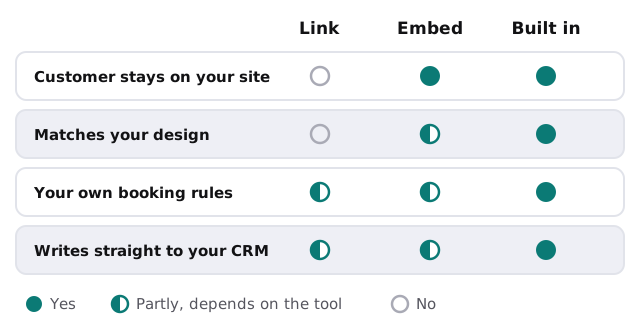
| Route | Good when | Watch out for |
|---|---|---|
| A link button | You want booking live today | Visitors leave your site, and the page looks different |
| An embedded widget | Your rules are simple | Limited control over looks and logic |
| Built into your site | Booking has real rules | More to set up, so it needs a clear reason |
Where it goes on the page
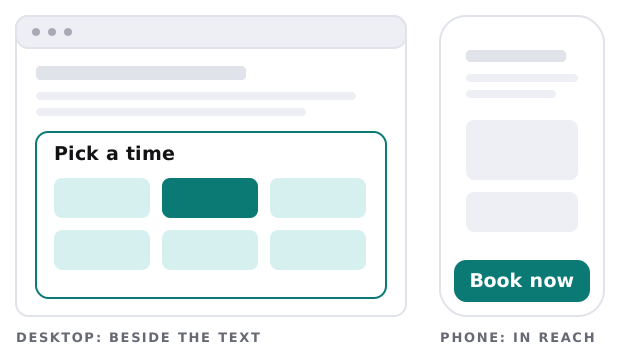
A widget hidden at the bottom of a long page gets fewer bookings than one near the top. The same layout rule applies on phones, where most visits now happen, but the placement is different.
What to ask, and what to leave out
Every extra field costs you some bookings. Start with the least you need.
- Which service. A short list, in plain words.
- Name and phone or email. One way to reach them is enough.
- A single free-text box. “Anything we should know?” Optional.
- Anything the job needs. An address for a home visit, for example, and only then.
Leave out: account creation, long forms, and questions you could answer from the customer record later.
After the click
A booking isn’t done until everything downstream knows about it. A good setup does all of this within seconds:
- The slot goes into your calendar, and disappears from the widget.
- The customer gets a confirmation with the details and a way to change it.
- A record appears in your CRM, with the source set to “website”.
- The right person is told, in the place they look.
- A reminder is queued, if you use them.
Rules the widget should know about
This is where custom builds beat generic ones. Think about which of these apply to you:
- Buffers. Ten minutes between appointments, or none.
- Travel time. A job across town blocks the next slot.
- Different staff. Some services need a particular person.
- Notice. No bookings for the next hour, or none on the same day.
- Capacity. Three at once on a workshop, one at a time on a consultation.
Signs you need one
- Your inbox has “what times do you have?” emails every week.
- You lose enquiries that arrive after the office closes.
- The same two or three people play phone tag to find a slot.
- Visitors read your services page and then leave without a trace.
Questions to ask any provider
- Does it show real availability from my live calendar?
- What does the visitor see if the calendar is down?
- Can I change the questions without a developer?
- Where does each booking go, and can I see the source?
- How does it behave on a small phone screen?
Rather build it yourself?
If you already have a booking page, try embedding it first. For connecting a booking tool to the rest of your setup with no code, our guide to setting up Zapier for your team is a good start. Come to us when the rules above make a standard tool awkward, or when you want the widget to match your site exactly.
What we need from you
- Your calendar and the services you want to offer.
- Your booking rules, in plain words.
- The page where the widget should sit.
We start with a plan and a fixed quote, and a person approves how bookings are written to your calendar before the first real customer uses it.
If booking takes a phone call, the customers who hate phone calls will go elsewhere.