Open your Shopify admin and your bank statement side by side and the numbers will not agree. Shopify shows orders. Your bank shows one deposit that covers a day or so of them, minus fees and refunds. A Shopify to QuickBooks integration exists to explain that gap, line by line, so your bookkeeper does not do it by hand every week. If you want to sync Shopify orders to QuickBooks, this is what has to happen underneath.
One payout, four numbers
Take a day with some sales, a small fee on each, and one refund. What arrives in the bank is not any of those numbers.
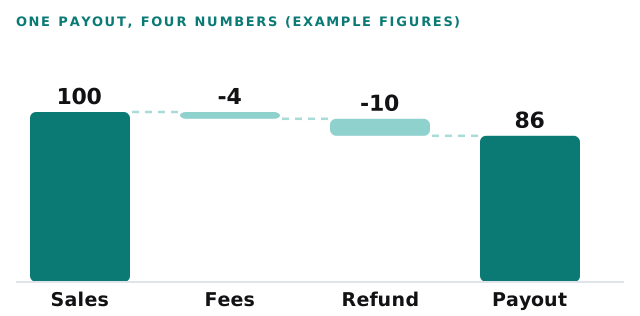
Intuit’s connector records each piece separately. Per its help article, a confirmed sale creates a Sales Receipt and its fees create an Expense, both held in Undeposited Funds. The payout then creates a Deposit that moves the net amount to your bank account.
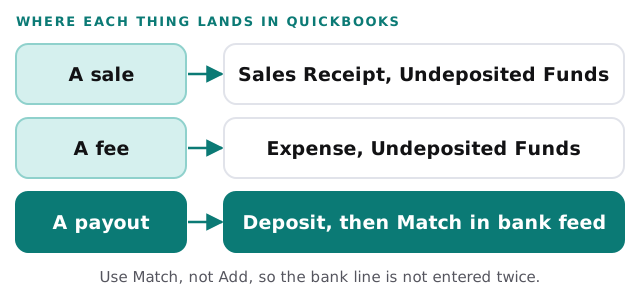
What the built-in connector covers
| Shopify side | QuickBooks side | Worth knowing |
|---|---|---|
| Sales | Sales Receipt | Includes shipping, discounts, taxes and products |
| Refunds | Refund entry | Carries amount, taxes and products |
| Fees | Expense | Recorded alongside the sale it came from |
| Payouts | Deposit | Matched to the bank feed, not added by hand |
| B2B orders | Invoice linked to a company | Payments through Shopify record as invoice payments |
Setting it up, in order
- Install the connector. In QuickBooks Online, go to Integrations, then Find integrations, and look for Shopify Connector by QuickBooks. You need permission to install apps in Shopify.
- Authorise Shopify. Enter your store address and sign in.
- Choose the settings. A start date, a Deposit account and a Payments account, plus the automation options.
- Sync, then wait. Intuit says the first import can take anywhere from 10 minutes to 3 hours.
- Work the review tab. Items marked Confirm can be added quickly. Items marked Review are missing something, such as a customer or product.
- Confirm sales and refunds before the payout. Then add the payout and match it in Bank transactions.
Where the connector stops
Intuit lists its own limitations, and these are the ones that cost bookkeepers time:
- History is capped. Imports go back up to one year only.
- Product tracking is optional. With it off, everything sits under one default item and your reports lose product detail.
- Products are not invented. If no match is found you create the item in QuickBooks by hand.
- Customers default too. With customer tracking off, sales go to one default customer.
- Changes need a re-sync. New settings apply only after you save and run Sync now.
When a small custom piece is worth it
A custom step is worth building when the defaults hide something you report on: product lines, wholesale customers, shipping costs by carrier, or sales tax in several places. We build it as a companion to Intuit’s connector rather than a replacement. It reads what the connector imports, suggests the right product or customer, and leaves a person to approve. Our page for a QuickBooks integration developer explains how we think about that work, and QuickBooks invoice matching automation covers the supplier side of the same books.
Rather do it yourself?
For most single-store sellers the connector is enough. Our guide to setting up QuickBooks for your team covers users, your accountant and bank rules, which is where a clean Shopify setup starts.
What we need from you
- Read-only look at your Shopify admin and QuickBooks, so we can see where sales and fees land.
- Your accountant’s view on how items and customers should appear in reports.
- Three recent payouts, including one with a refund.
- Which other payment methods you take besides Shopify’s own.
Match the payout, never add it. That one habit prevents most Shopify bookkeeping errors.