A new Teams account looks tidy. Six months later it holds forty teams, three called “Sales”, a channel nobody dares delete and a contract in a chat that only one person can find. Microsoft Teams setup for small business is the work that stops that happening: a small amount of structure, agreed before staff start creating things.
Start with the three words Microsoft uses
Microsoft’s overview defines them plainly, and the setup follows from them.
A team
A collection of people, content and tools around a project or outcome. It can be private to invited users or public within your organisation. Conversations, files and notes across a team’s channels are visible to the team’s members only.
A channel
A section inside a team for one topic. Microsoft names three kinds: standard channels open to every team member, private channels for selected members, and shared channels for selected people inside and outside the team.
A site behind the scenes
Files shared in a channel are stored in SharePoint. Creating a team, or a private or shared channel, creates a SharePoint site. In the comparison table, standard channels do not get a dedicated site, while private and shared channels do.
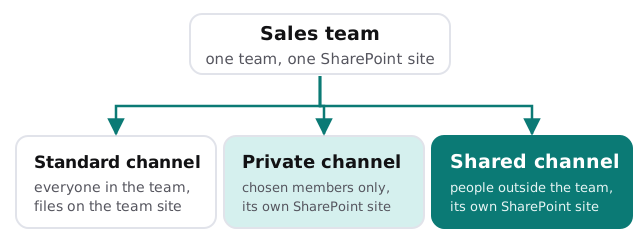
Which channel for which situation
| Situation | Usual choice | Why |
|---|---|---|
| Everyone in the team needs it | Standard channel | Simple, and moderation and meetings work as expected |
| A sub-group needs privacy, such as pay or hiring | Private channel | Membership limited to a subset of the team |
| A client or partner works alongside you | Shared channel | People can be added without joining the team |
| A quick one-off question | Chat, not a channel | Keeps channels from filling with noise |
One detail from Microsoft’s comparison is worth knowing: guests can take part in standard and private channels, but not shared channels, and external participants through B2B Direct Connect can only join shared channels. Which one you need depends on how your clients sign in.
Setting it up, in order
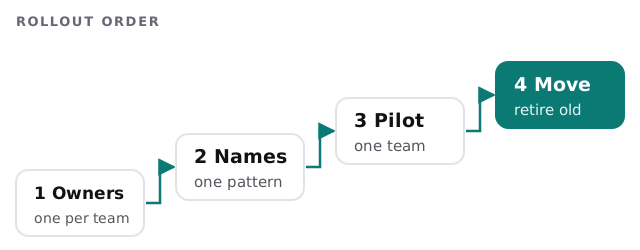
- Choose the owners. Aim for at least two per team, so a holiday doesn’t leave it unmanaged. Microsoft notes that owners can add co-owners at any time.
- Agree a naming pattern. Department, then purpose. Write it on one page.
- Create the starting teams. Often just a few: the whole company, each department and one for leadership.
- Add channels for real topics. Start with two or three per team and let usage tell you what is missing.
- Decide who may create teams. Everyone by default; change it only if sprawl becomes a problem.
- Plan outsiders. Whether guests are welcome, and which channel type they will use.
What staff need to hear
Moving people into Teams fails when it feels like extra work. We write a one-page guide covering what goes in chat, what goes in a channel and where a file should be saved. A short walkthrough with the first team is worth more than a long document. Decide too what happens to the old habit: if staff can still email attachments around, they will, so name a date after which the shared inbox and the old file share stop being the place to look.
Where we help
If you are on Microsoft 365 already, the Teams part of the job is a few hours of decisions. If you are still choosing a platform, our Microsoft 365 setup for small business page covers the whole suite, and SharePoint migration for small business covers moving old file shares behind your teams. Joiners and leavers matter here too, so we tie access to your onboarding and offboarding checklist.
We begin with the free IT check, then give you a plan and a fixed quote. A person on your side signs off the structure before staff are invited.
A good Teams setup has fewer teams than you expect and clear reasons for each one.