Microsoft 365 setup for small business goes wrong in a predictable way. Someone buys licenses, creates a few accounts with whatever name came to mind, points the email at it, and discovers a month later that nobody knows who the administrator is. Fixing it costs more than building it properly the first time. The good news is that the proper version is only a few hours of work if you take it in order.
The order matters
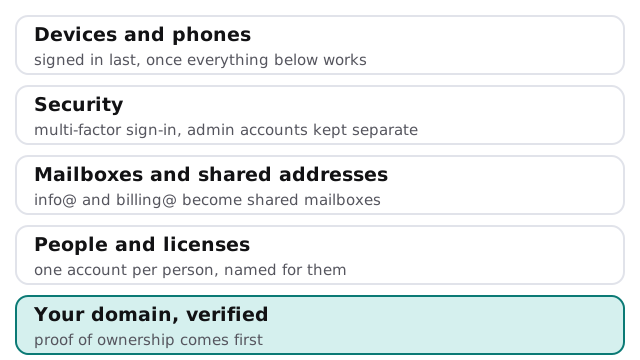
Each layer depends on the one below it. Skip ahead and you end up redoing the earlier work.
Step by step
- Verify the domain. Microsoft asks you to prove you own it by adding a DNS record, either automatically through Domain Connect or by hand at your registrar. By hand, it says verification can take up to 10 minutes, and up to 48 hours at some registrars.
- Create people before pointing email. Microsoft’s own guide says to add users and mailboxes first, then add the MX record, so mail still arrives as it moves over.
- Keep admin accounts separate. Two named administrators, each with a second personal account for daily work. An admin who reads email all day is an admin whose password gets phished.
- Turn on multi-factor sign-in for everyone, admins first, before email goes live.
- Create shared mailboxes for addresses like info@ and billing@, rather than giving one person’s password to the team.
- Set up the file areas (below).
- Add devices last. Laptops and phones sign in once everything else is right.
If you only want the do-it-yourself version of the first step, Microsoft’s page on adding a domain is the source for everything above.
Where files go
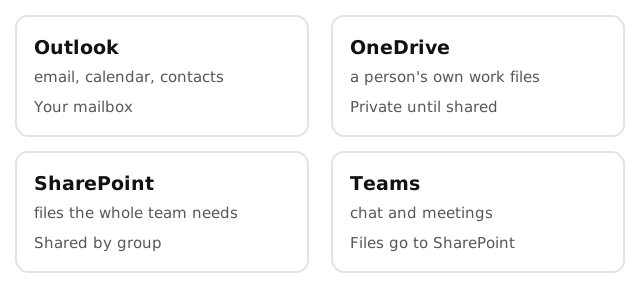
New teams usually ask the same thing in week one: “where do I save this?” The answer is easier to give once than to correct forever.
Decisions that are cheap now and costly later
| Decision | Easy now | Painful later |
|---|---|---|
| Account names | One format for everyone | Renaming accounts, signatures and sign-ins |
| Admin roles | Two named admins | One shared “admin” login |
| Shared addresses | Created as shared mailboxes | A person who left owns the inbox |
| Team file areas | One per team, named plainly | Folder sprawl moved around by hand |
| Recovery details | Company phone and email | A former employee’s personal number |
Rolling it out to people
- Sign-in: everyone signs in with multi-factor on their phone, with a short walkthrough rather than an email.
- Shared mailboxes: checked by the people who need them.
- Old email: archives brought across for anyone who wants them.
- Files: a quick session on OneDrive versus the team area.
- Follow-up: a list of what didn’t work, fixed.
If you’re moving from another system rather than starting fresh, that’s a migration project with its own plan, and we’ll quote it separately.
Size and room to grow
Microsoft’s service description lists up to 300 licensed users on the Business plans, which covers most small firms comfortably. Past that you’d look at a different plan family, and it’s better to know that now than during a growth spurt.
What we need from you
A list of everyone who needs an account, with the shared addresses you want. Access to your domain registrar. Who in the business owns decisions about access. Everything else we’ll document for you as we go, so the setup doesn’t live in one head.
The setup isn’t finished when email works. It’s finished when someone other than the person who built it knows how everything is connected.