In an office, half of IT support is someone leaning over a shoulder. Remote work removes the shoulder. The laptop is in a spare bedroom two states away, the Wi-Fi belongs to the employee, and the person who needs help may be the only one awake. Good IT support for remote teams designs around that from the start instead of patching it afterwards.
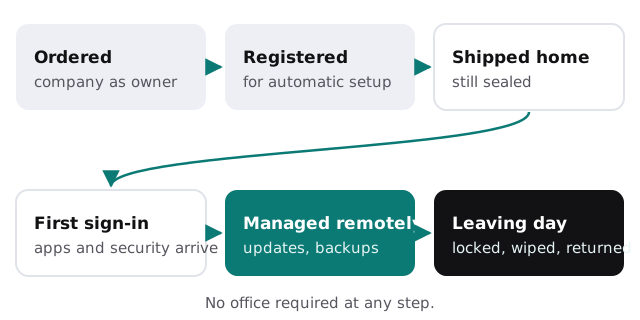
A laptop’s life without an office
- Ordered with the company as the registered owner.
- Registered for automatic setup, through Windows Autopilot or Apple Business Manager, so it knows it belongs to you.
- Shipped straight to the employee’s home, still sealed.
- First sign-in. The employee logs in with their work account; apps, settings and security arrive on their own.
- Looked after remotely. Updates, encryption and backups are managed centrally while it’s in use.
- Leaving day. Access is switched off, the laptop is locked and wiped remotely, and a courier label goes out for its return.
The old office VPN, and what replaces it
| Old way: VPN into the office | Remote-first way | |
|---|---|---|
| Where files live | A server in the office | Cloud storage like SharePoint or Drive |
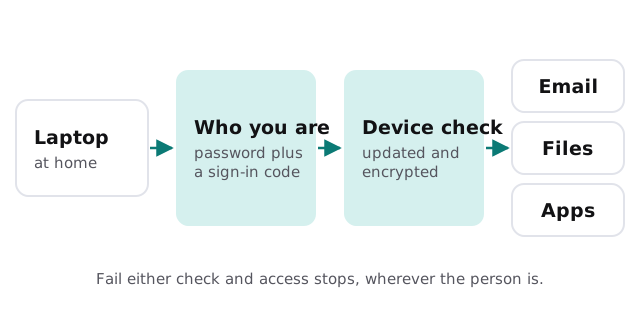
| What grants access | Being connected to the office network | Who you are, plus a healthy device |
| The weak spot | One password can open the whole network | Every sign-in is checked, every time |
| If the office internet drops | Everyone stops working | Nothing changes for anyone |
Getting help when you’re the only one home
- Screen sharing with permission. The person sees what we see and can end the session at any time.
- Fixes that don’t need the person present, like pushing an update or reinstalling an app overnight.
- A spare laptop ready to ship, so a dead machine costs a day, not a week.
- Help with home Wi-Fi, because “the internet is slow” is often the router in the hallway.
What breaks most often for remote teams
Shared drives mapped to an office server that nobody can reach from home. Printers that only work on the office network. Software licensed to one machine instead of one person. And passwords reset by “just ask the person at the next desk”, which doesn’t exist any more. Most of these are setup problems, not support problems, and they’re cheaper to fix once than to support forever.
Security that follows the person home
An office has locked doors and a managed network. A home has neither, so the protection has to live on the laptop and in the accounts:
- Work stays on the work laptop. Family computers and personal tablets don’t get company email or files.
- The screen locks itself after a few minutes away, because homes have visitors and children.
- Disks are encrypted, so a laptop stolen from a car doesn’t hand over client files.
- Updates install on their own instead of waiting for someone to come into an office.
- Phishing training covers personal email too, since attackers know remote staff check both on the same machine.
A remote hire’s first morning
Done well, it looks like this: the laptop arrives the day before, still sealed. On the first morning the new hire signs in with the temporary password from their welcome email, sets up multi-factor sign-in on their phone, and watches their apps install while they read the handbook. By the first coffee break they’re in email, files and the team chat, and nobody had to share a screen to get them there.
If a new hire can’t get from a sealed box to a working day without anyone touching their laptop, the setup isn’t remote-ready yet.