An Excel to CRM migration starts with a surprise: the spreadsheet knows more than you think. Over the years, someone’s colour scheme became your pipeline, a notes column became your task list, and a duplicated row quietly became your second customer. A CRM can’t read any of that. It reads cells, one field at a time, so the job is translation.
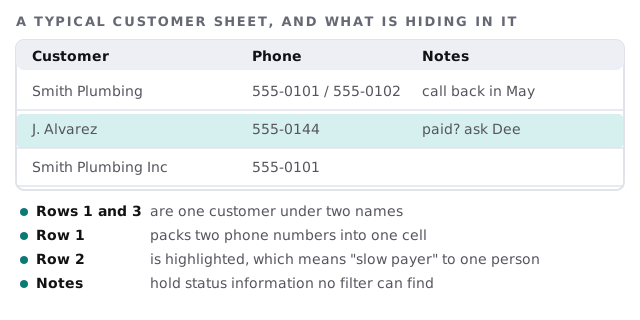
Five habits, five fixes
| In the spreadsheet | In the CRM |
|---|---|
| A colour or highlight | A real field such as Status, with a fixed set of values |
| Two phones or emails in one cell | One per field, with a clear primary |
| The same customer twice | One record, merged before the import |
| Next step typed into Notes | A task or a stage with a date |
| Free-text categories | A picklist, with the spellings cleaned up |
The step that takes longest is the colour one, because it needs a conversation. “Yellow means slow payer, red means lost, green means don’t call.” We write each rule down with whoever created it, then add a column that holds the meaning in words.
One sheet, three kinds of record
Most customer spreadsheets mix a company, a person and a deal on each row. CRMs keep those separate and link them.
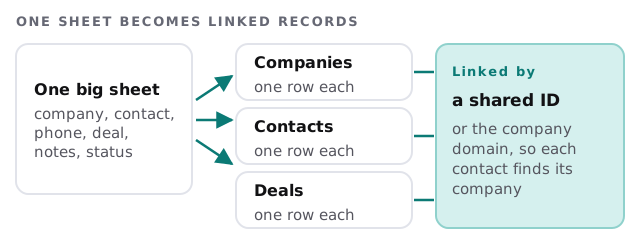
HubSpot’s import guide is a clear example of how this works. One file can associate records of different kinds, such as a contact and a company, as long as unique identifiers for each are in the same row. To link a record to several others, you include multiple rows for it. Or you can use two files joined by a common column. The principle holds for most CRMs, even when the details differ.
The order we work in
- Copy the sheet and never touch the original again.
- List the columns and what each one really means, with the person who fills it in.
- Convert colours and notes into fields and tasks.
- Split into record types, with a shared key between them.
- De-duplicate by email, company domain and a fuzzy name check, then review the matches by eye.
- Match the target’s rules. For HubSpot that means one sheet per file, a header row matching its property names and fewer than 1,000 columns.
- Test import a small slice and open the records as a salesperson would.
- Full import, then compare counts with the sheet.
The Thursday test
Before the full import, we pick five customers whom everyone knows and look them up in the CRM together. Is their company right? Are both contacts attached? Does the last note still make sense? If three of five are right, we change the rule rather than patch the records. If five of five are right, we load the rest.
Signs the spreadsheet has run its course
- Two people have edited it at once and one version was lost.
- Follow-ups depend on someone remembering to scroll to the bottom.
- You can’t answer “how many open quotes do we have?” without a lunch hour of counting.
- A salesperson left, and their sheet left with them.
- Sending a bulk email means copying addresses into another tool by hand.
Choosing the destination
If you haven’t picked a CRM yet, the setup walkthroughs for HubSpot, Pipedrive, Zoho CRM and Salesforce show what each one asks for. Our page on CRM data migration covers the harder case of moving from one CRM to another.
What we need from you
- The spreadsheet or spreadsheets, wherever they live.
- A short conversation with whoever invented the colour scheme.
- A list of the reports you run from the sheet today, so the CRM can reproduce them.
- A decision on how much history is worth keeping.
A spreadsheet stores your customers. A CRM also stores what you intend to do next, and that part has to be written down first.